Issue: Unable To Perform Secure Print Due To Password Rules Setting
Guide on how to resolve the issue that unable to perform secure print due to password rules setting
Password rules are enforced on some of the photocopier to maintain system security and protect company data. These rules help prevent unauthorized access to the device, ensure that Secure Print jobs are properly authenticated, and reduce the risk of confidential information being exposed.
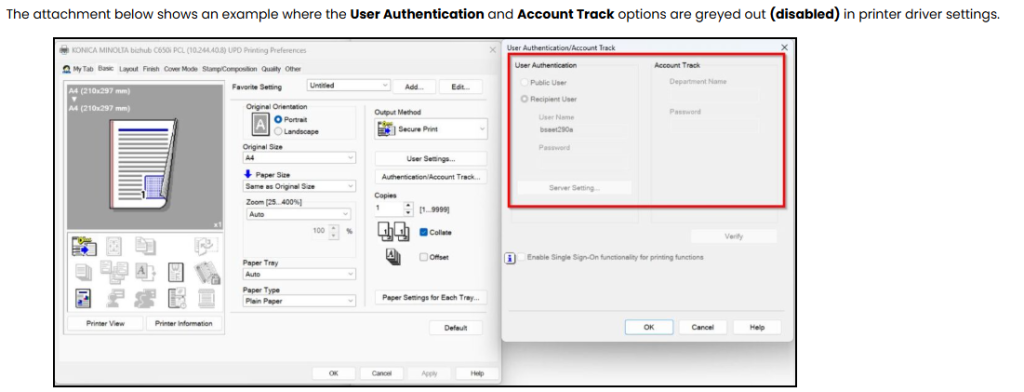
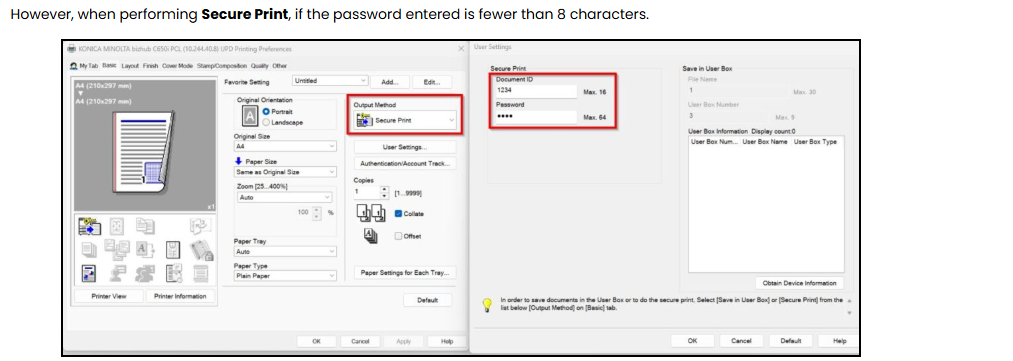
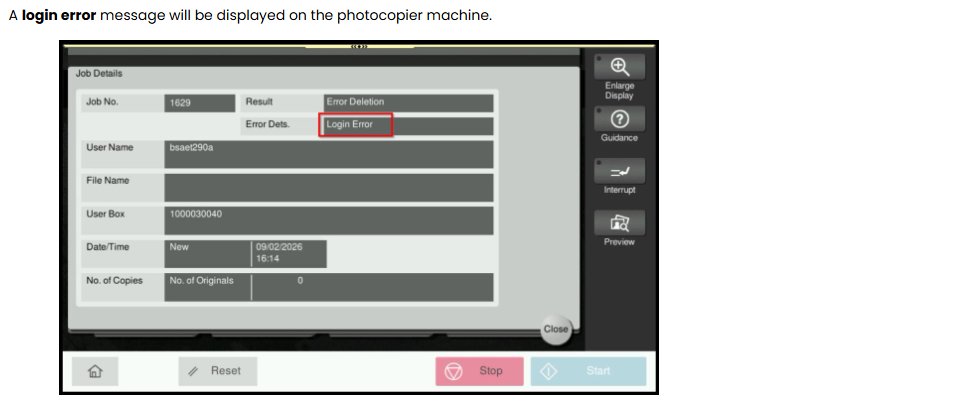
When performing Secure Print while User Authentication or Account Track is disabled, the print job may fail if the password entered is fewer than 8 characters. This occurs because the password policy rules are enabled on the machine, which enforce a minimum password length requirement.
Although the printer model and driver settings are correct, the job will still be rejected if it does not meet the configured password rules.
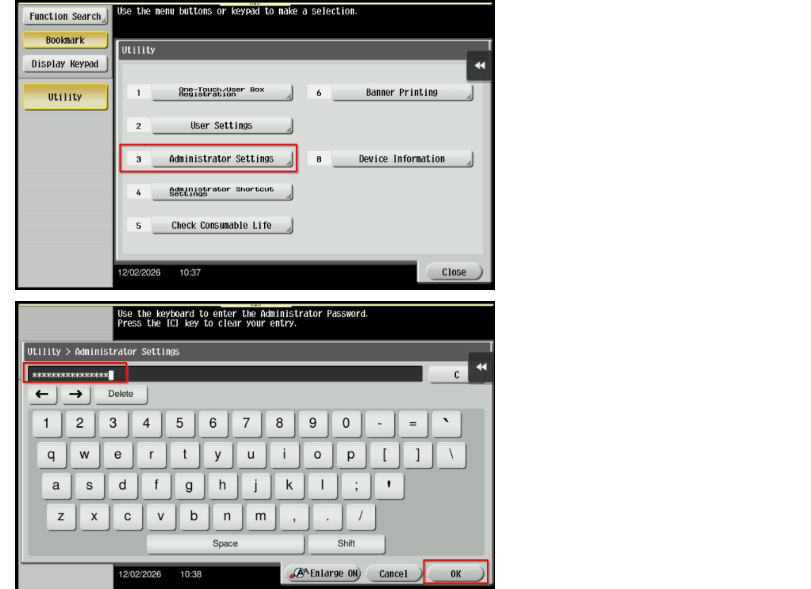
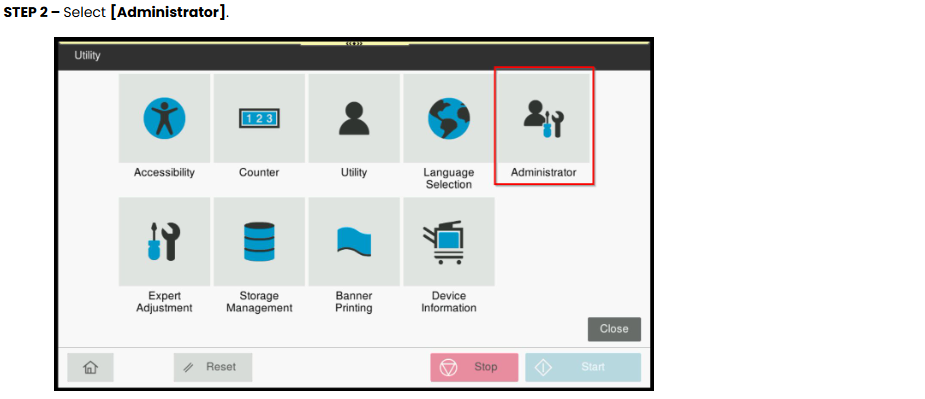
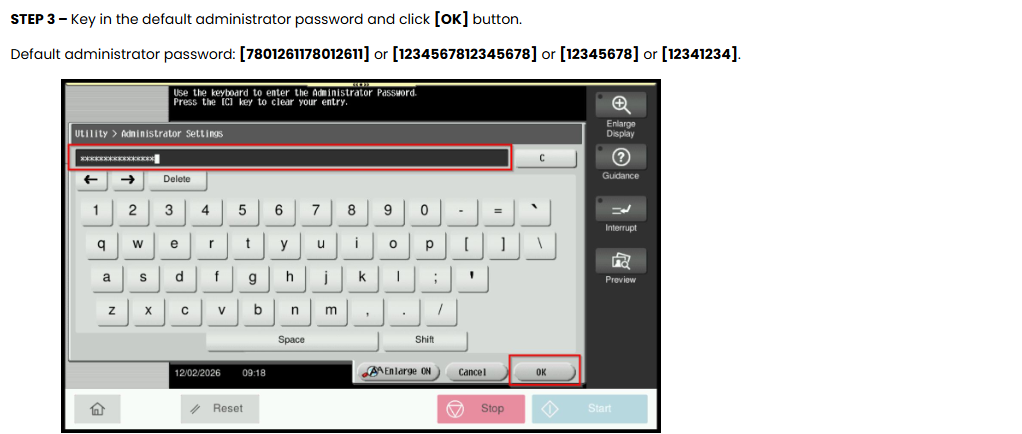
STEP 2 – Select [Administrator Settings] and Key in the default administrator password and click [OK] button to login.
Default administrator password: [7801261178012611] or [1234567812345678] or [12345678] or [12341234].
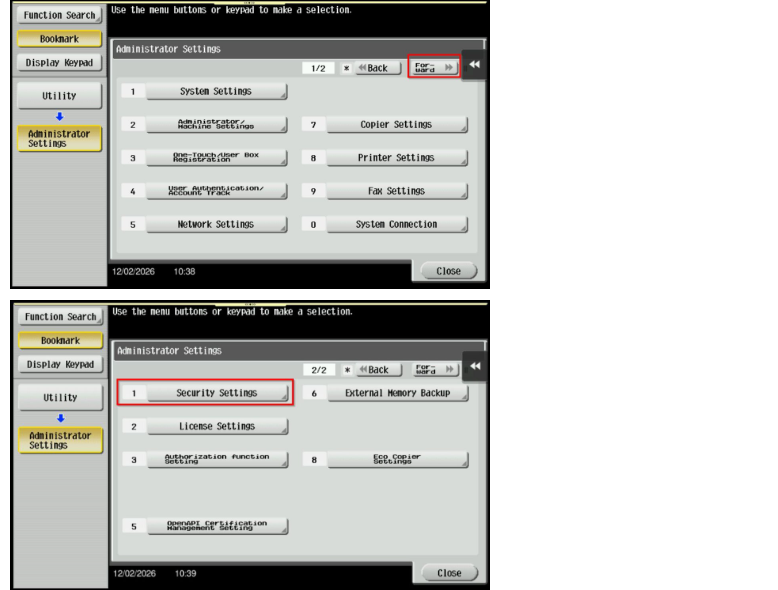
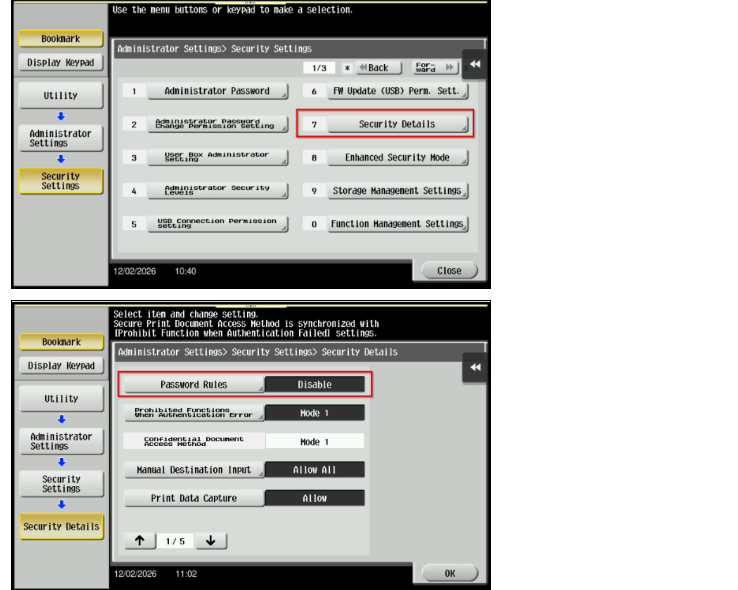
STEP 3 – Click on [Forward] – [Security Settings].
For the Newer Machine series / I-Series Machine (Accessible from Screen Panel & Web Connection)
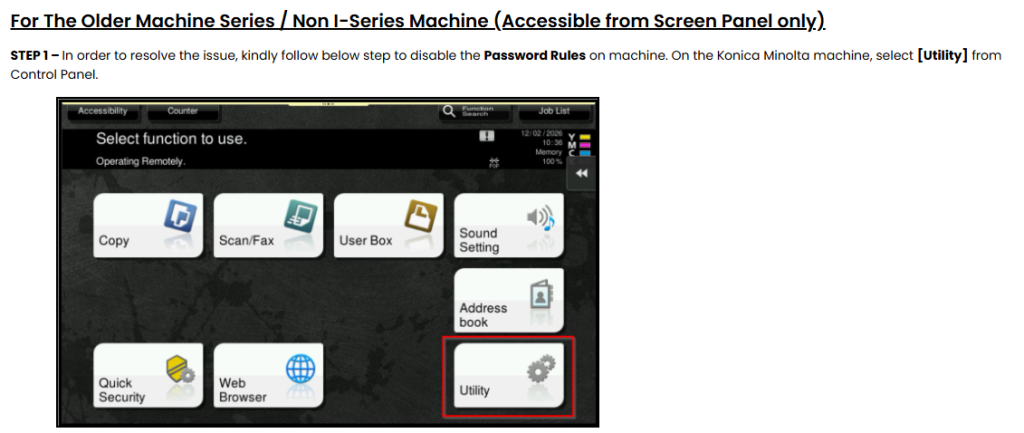
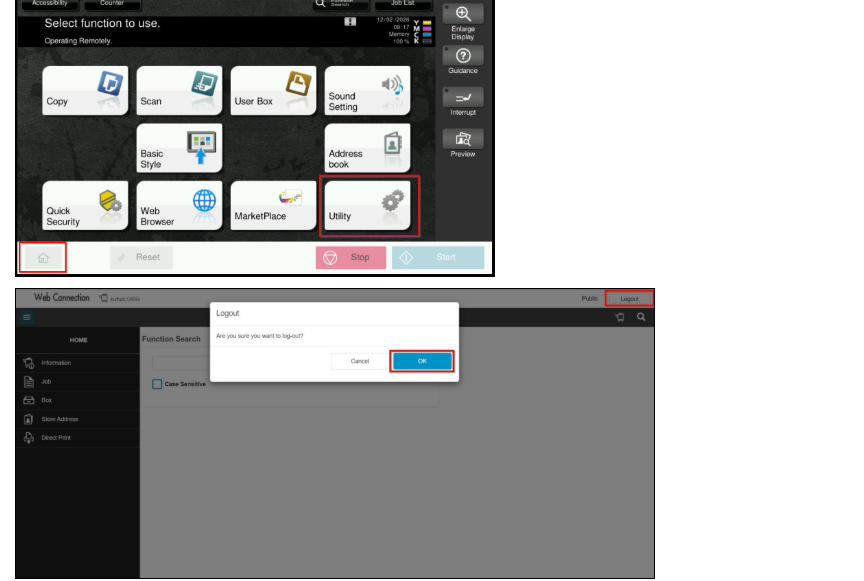
STEP 1 – Select [Home] – [Utility].
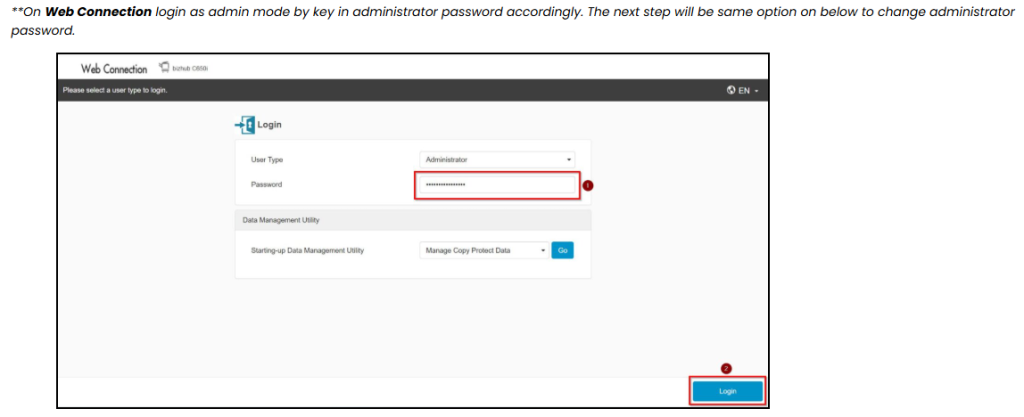
**You may access to web connection via machine IP Address. Click on this to check how to get the IP Address from machine, then key in Konica Minolta Machine IP Address at web browser and log in as admin the Web Connection.
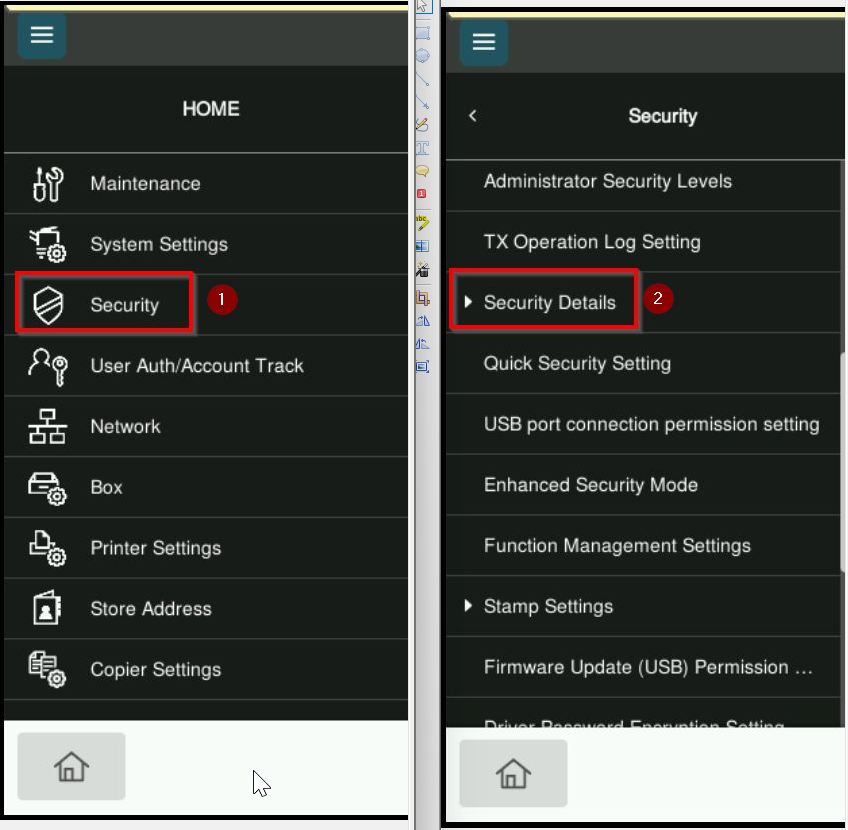
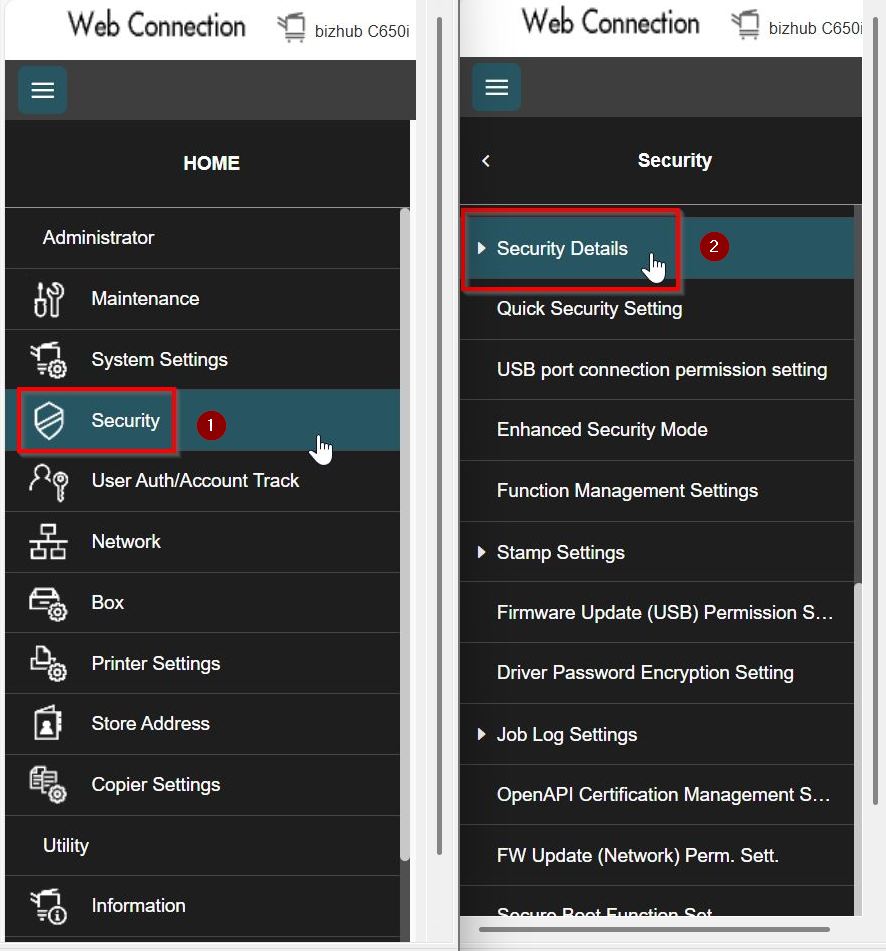
STEP 4 – Go to [Security] – [Security Details].
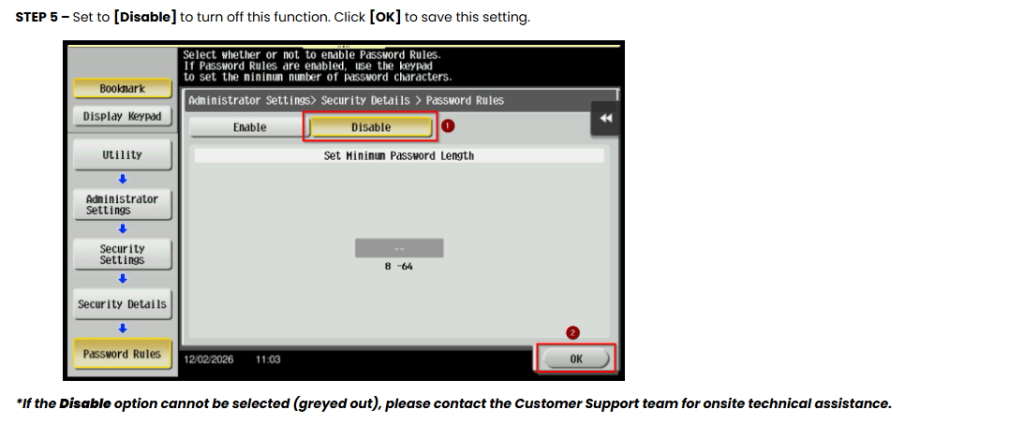
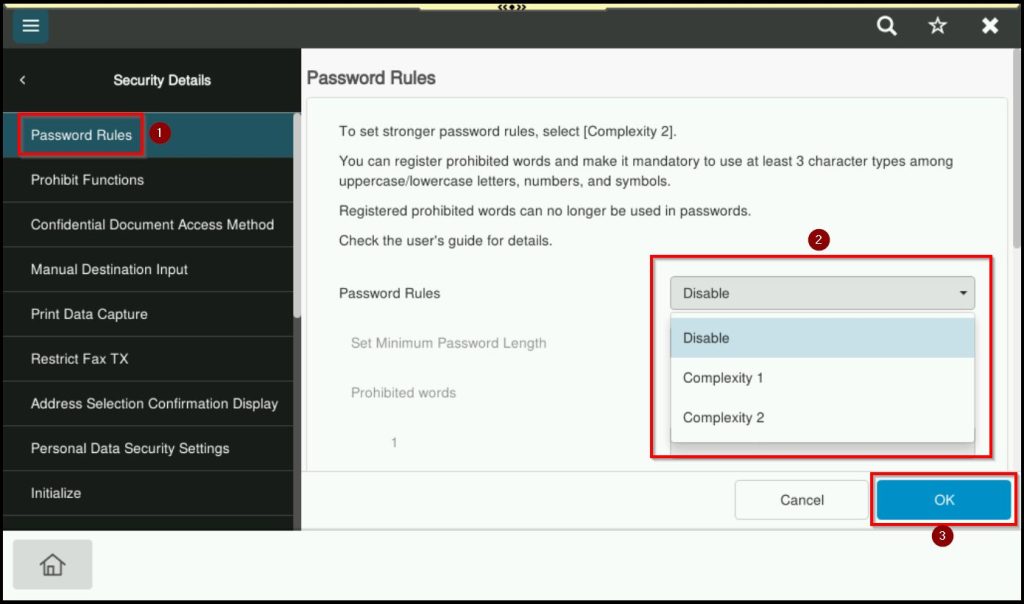
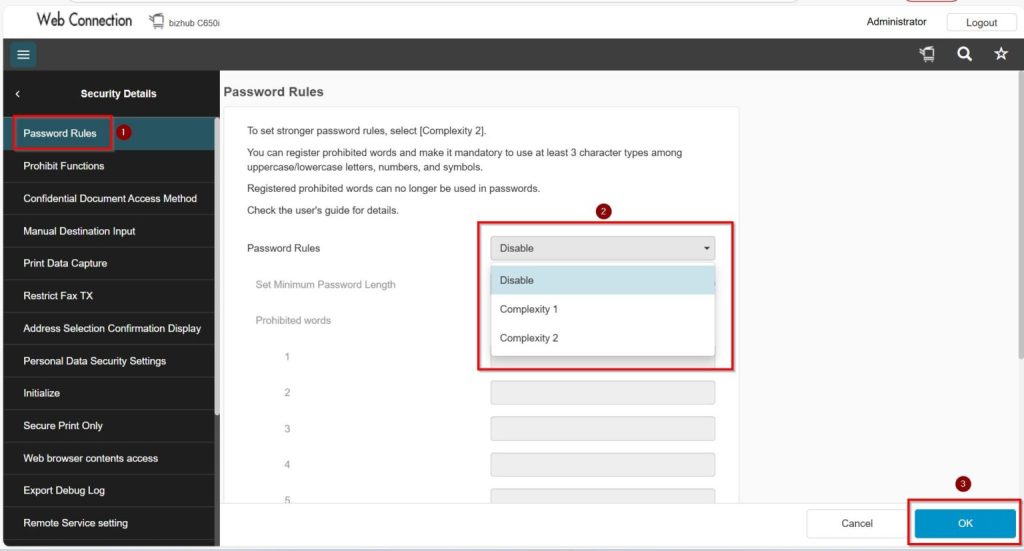
STEP 5 – Select [Password Rules], set [Password Rules] from either [Complexity 1] or [Complexity 2] to [Disable] to turn off password rules, then select [OK] to save the settings.
*If the Disable option cannot be selected (greyed out), please contact the Customer Support team for onsite technical assistance..