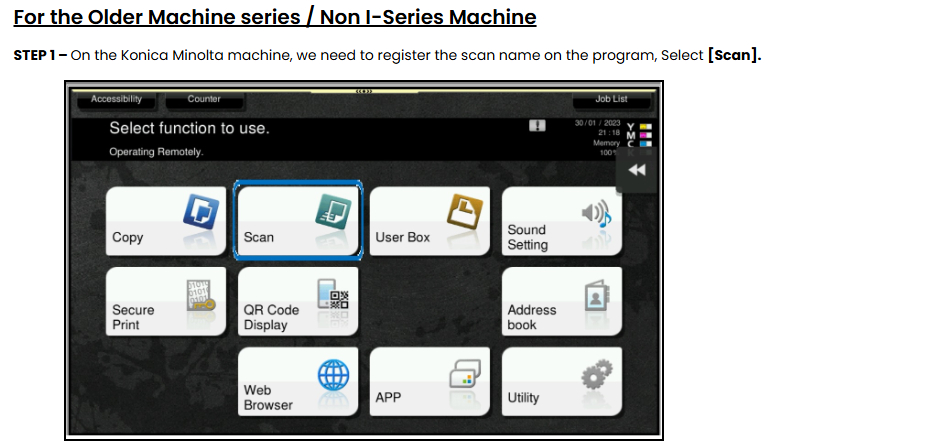
How to add shortcut for store address scan name direct on Main Panel
Guide on how to add shortcut for store address scan name direct on Main Panel.
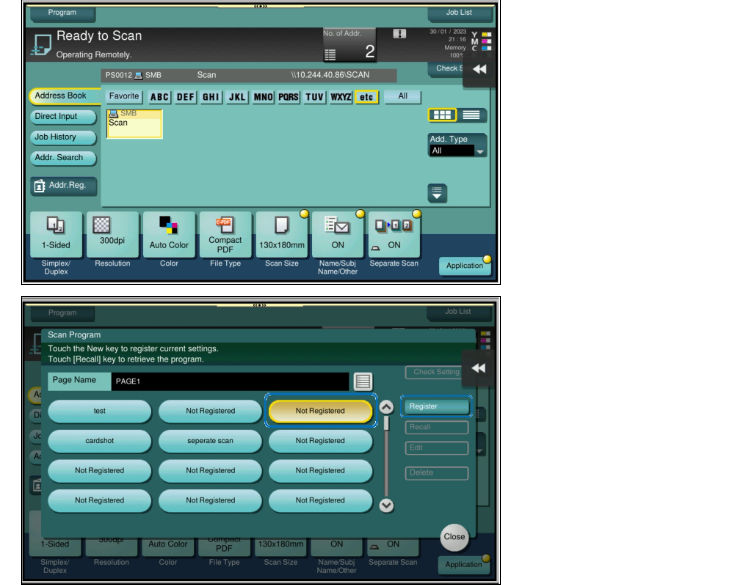
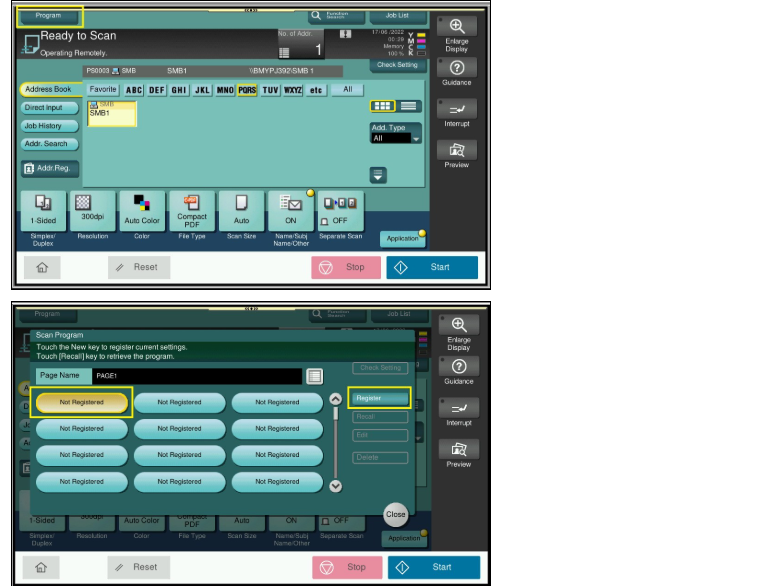
STEP 2 – Go to [Program], and click on [Not Registered], and select [Register].
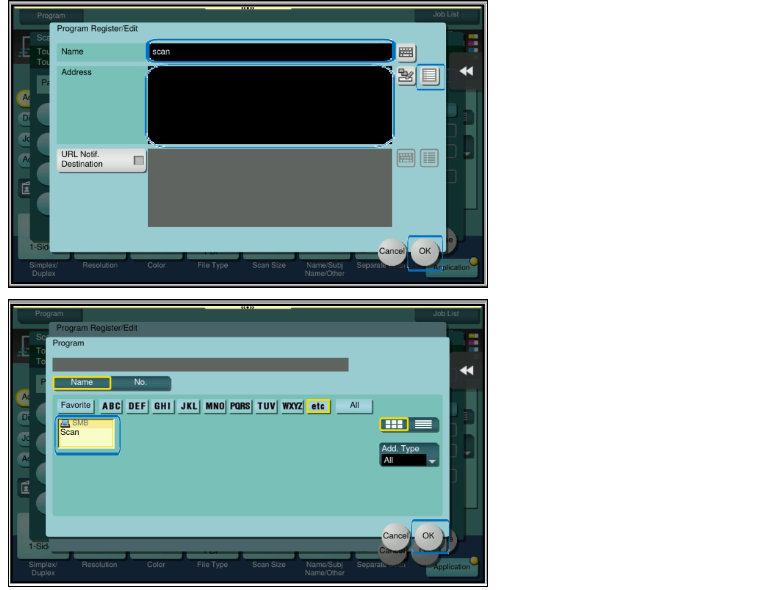
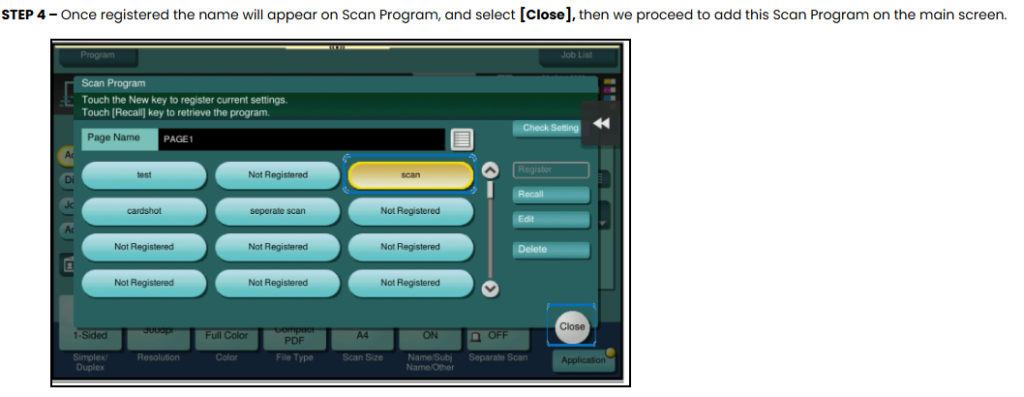
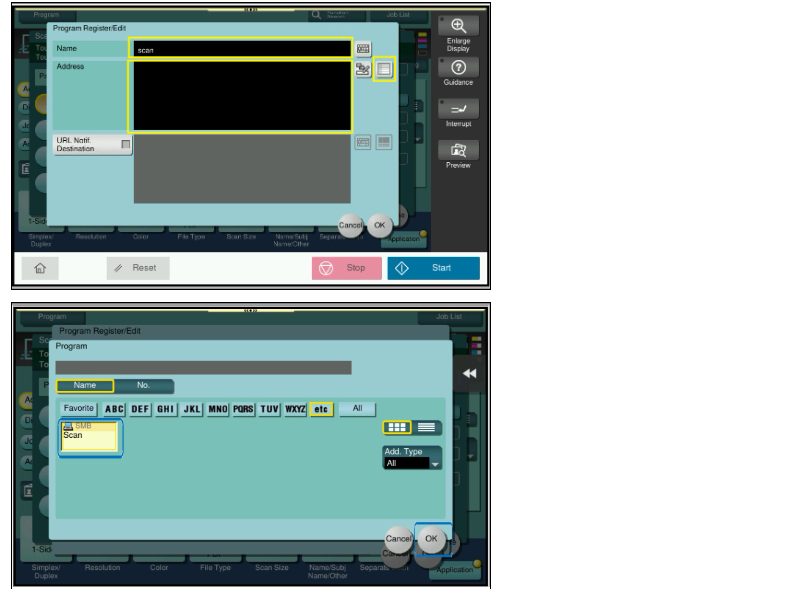
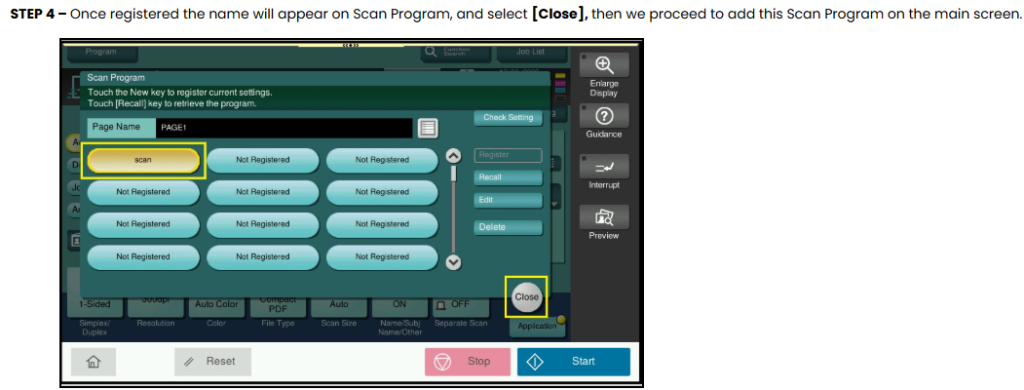
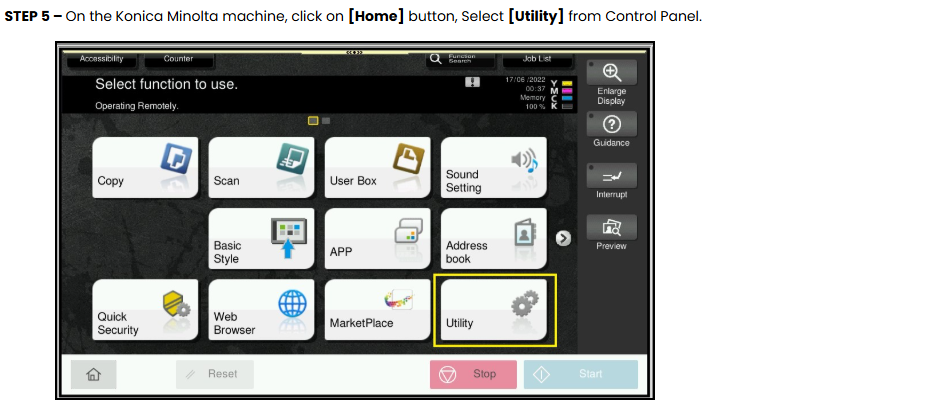
STEP 3 – Key in the Name, and select the Scan Address by click on drop down list, and select OK to [Register].
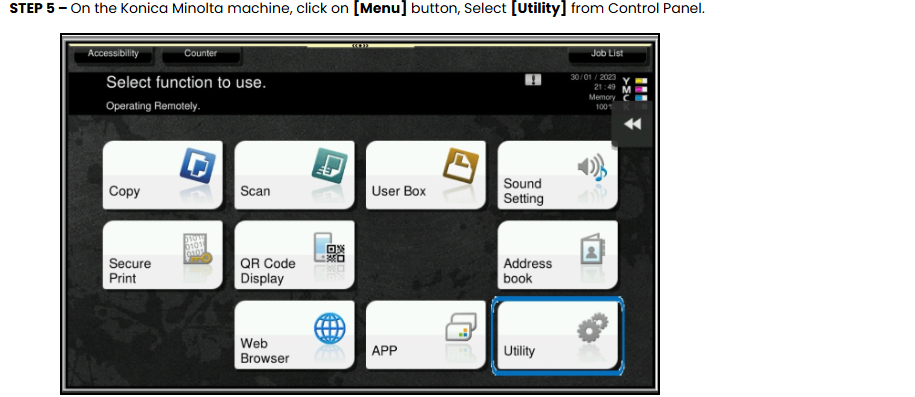
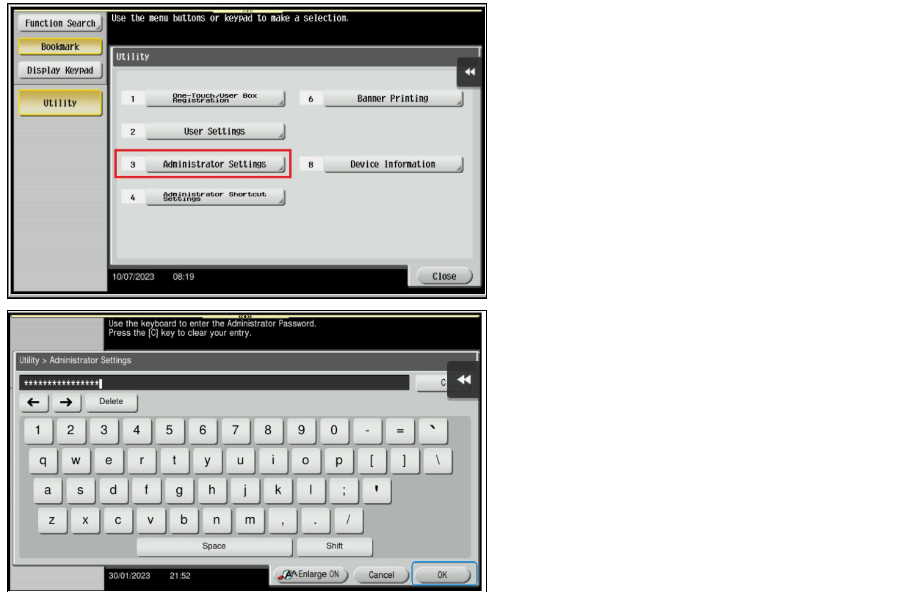
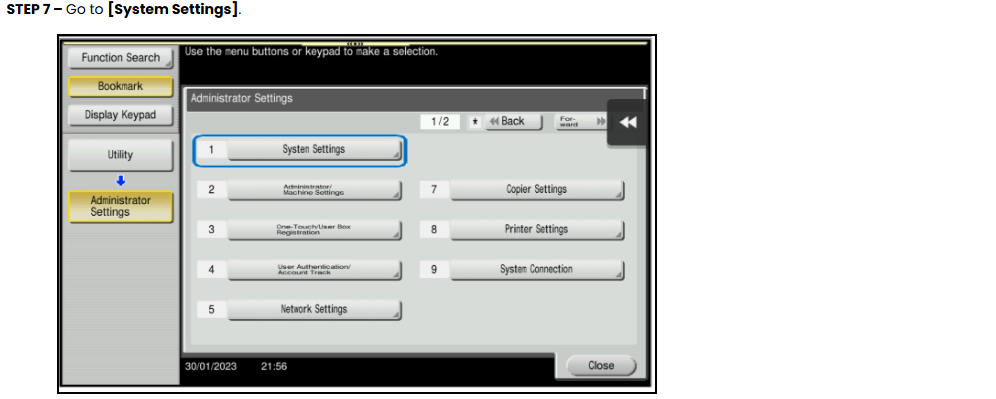
STEP 6 – Select [Administrator Settings], and key in the Administrator password accordingly.
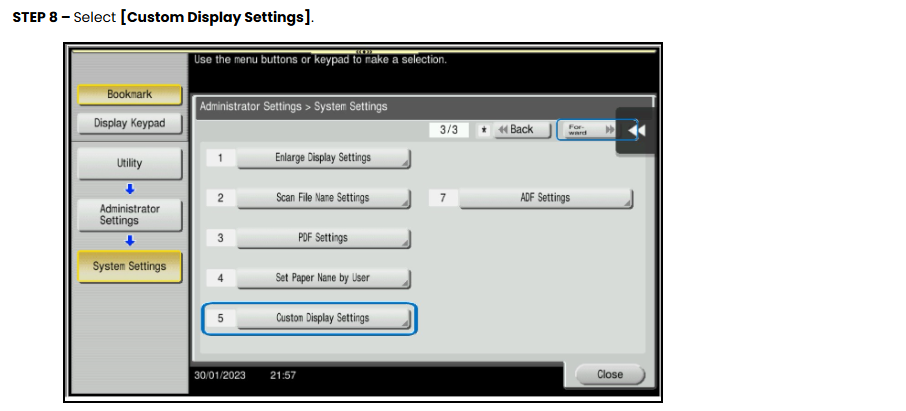
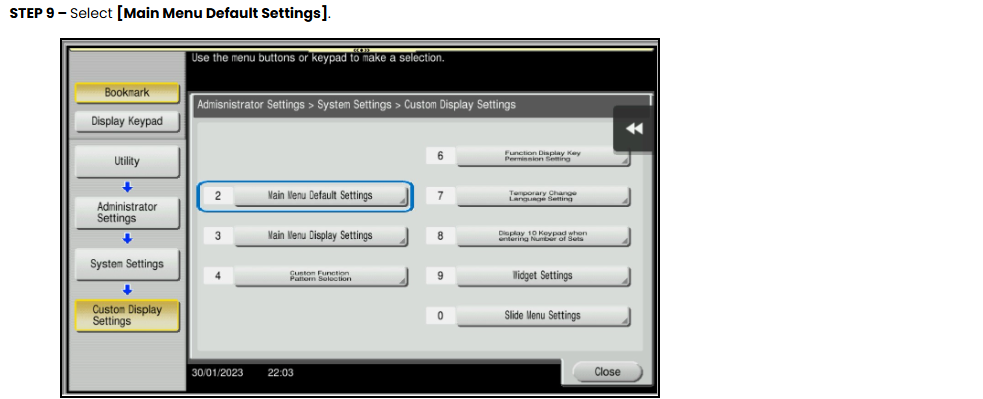
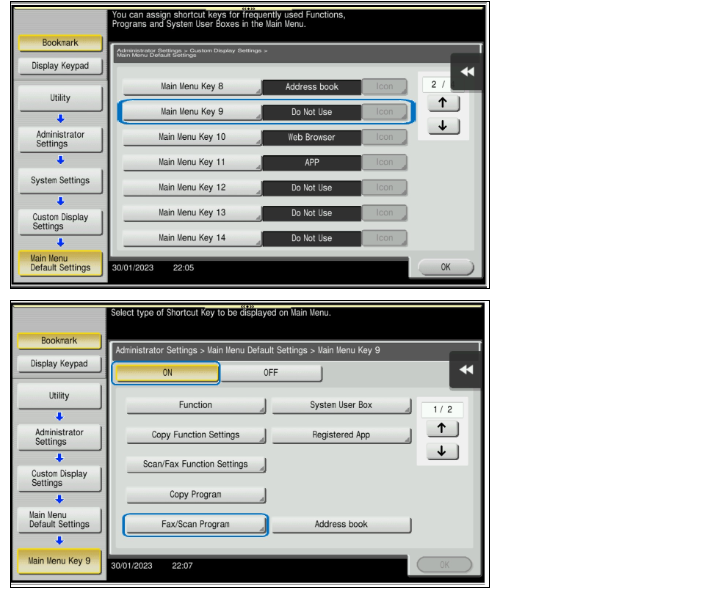
STEP 10 – Select those who are stated [Do Not Use] under any Main Menu Key and select On, click on [Fax/Scan Program].
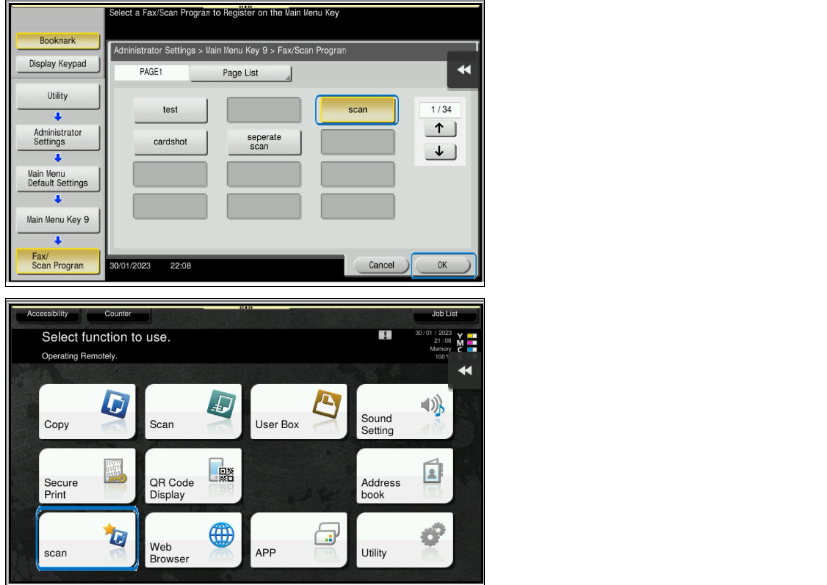
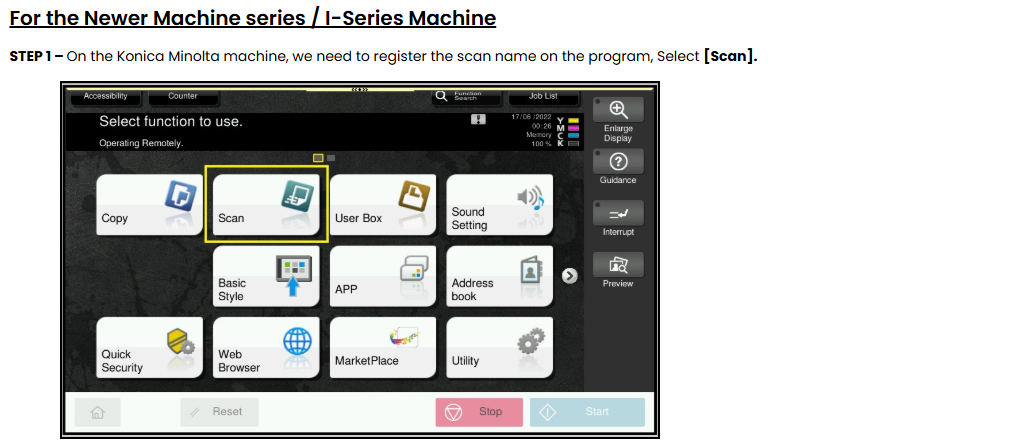
STEP 11 – Select the name that have been register just now, click [OK] to save the setting, the scan name will appear under the main screen, so it will be able to scan without need to go in to [Scan] name and select the name manually.
STEP 2 – Go to [Program], and click on [Not Registered], and select [Register].
STEP 3 – Key in the Name, and select the Scan Address by click on drop down list, and select OK to [Register].
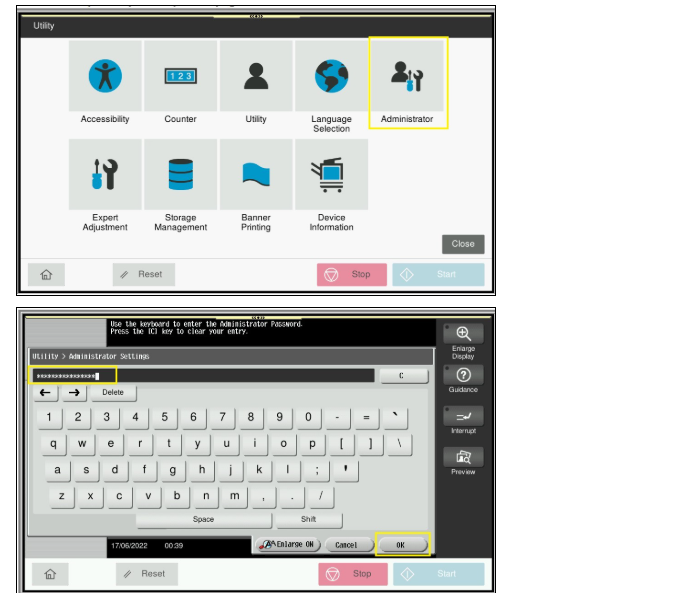
STEP 6 – Select [Administrator], and key in the Administrator password accordingly.
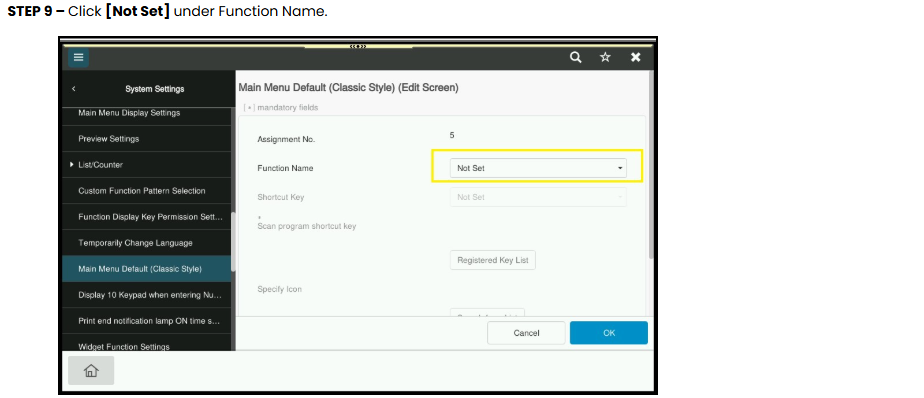
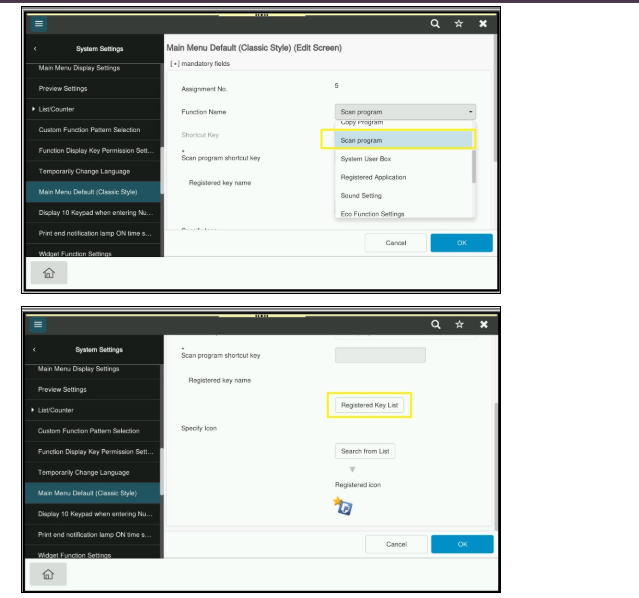
STEP 10 – Select [Scan Program] under Function Name, then click on [Registered Key List] to select the registered scan name.
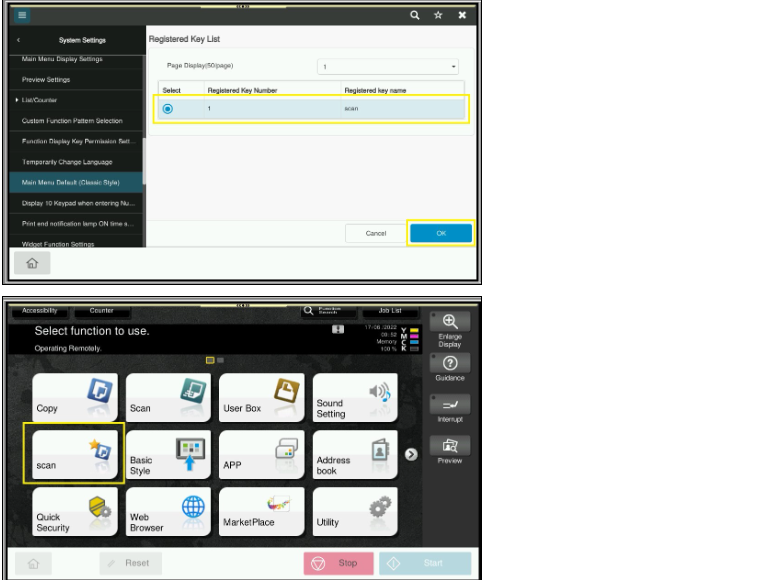
STEP 11 – Select the name that have been register just now, click [OK] twice to save the setting, the scan name will appear under the main screen, so it will be able to scan without need to go in to [Scan] name and select the name manually.